> For the complete documentation index, see [llms.txt](https://primexbt.gitbook.io/help-center/llms.txt). Markdown versions of documentation pages are available by appending `.md` to page URLs; this page is available as [Markdown](https://primexbt.gitbook.io/help-center/margin-trading/adding-widgets-and-customising-your-workspace.md).
# Adding Widgets and customising your Workspace
**Workspace** is the area of the [Trade](https://primexbt.com/my/trade) page where all of your **Widgets** are shown. All trading is performed in your **workspaces**.

The 4 default **widgets** are *Chart*, *Watchlist*, *Positions* and *Orders*. You can add or remove any widgets from your **workspace** by clicking the **'+Add Widgets'** button:

Clicking on the '**+**' widget button to bring up the Widget menu:\\

There are 7 different widgets which can be added to your **Workspace**:\
\
\- ***Chart widget***: highly customizable Chart with a large array of charting tools\
\- ***Watchlist widget***: helps monitor market activity for selected trading pairs\
\- ***Dashboard widget***: shows [Spreads](/help-center/trading-with-primexbt/order-types.md#bid-price-ask-price-and-spread) for selected assets and specific order volumes.\
\- ***Positions widget***: allows you to manage all open Positions.\
\- ***Orders widget***: allows you to manage all active Orders.\
\- ***Trades widget***: reflects recently executed Orders.\
\- ***Messages widget***: reflects logs of all recently placed, cancelled, rejected, modified or executed orders, as well as margin call and position liquidation notifications and system messages.\\
### **Link/Unlink widget feature**
The **Link/Unlink** widget feature allows you to **link your Chart and Watchlist** widgets to each other. When linked, clicking on a trading pair in the Watchlist widget, will automatically bring up the Chart for that pair in the Chart widget.

To link a widget, click on link button at the top of the widget. The button is blue when a widget is linked and black when it isn't.
### **Adding new Workspaces**
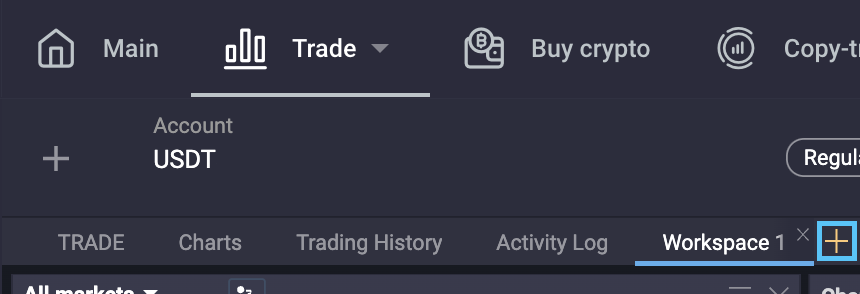
Additional Workspaces can be added to the Trade page by clicking the '**+**' button as shown in the screenshot:
 at the top of the widget. The button is blue when a widget is linked and black when it isn't.
### **Adding new Workspaces**
Additional Workspaces can be added to the Trade page by clicking the '**+**' button as shown in the screenshot:
at the top of the widget. The button is blue when a widget is linked and black when it isn't.
### **Adding new Workspaces**
Additional Workspaces can be added to the Trade page by clicking the '**+**' button as shown in the screenshot: